If you work from home and you travel long-term, you will at some point sit down in a freshly arrived Airbnb, open your laptop, and discover that what the listing described as a “dedicated workspace” is a wobbly table pushed against a wall, a dining chair with no lumbar support, and an internet connection that drops out every twenty minutes.
This is not a rare edge case. It is, in our experience, closer to the norm.
After years of working remotely from Airbnbs across multiple countries, we’ve navigated nearly every version of this problem — unreliable Wi-Fi, dead zones in the middle of a video call, workspaces designed for appearance rather than function, and the particular creativity required when two people both need a proper desk and the apartment contains exactly one. At one point, during a three-month stay, one of us was working from a setup involving a desk drawer pulled out as a surface, with one leg on each side, paired with a dining room chair. Not ergonomic. Not comfortable. But functional — and in the absence of alternatives, that has to be enough.
Over time, we’ve found solutions to most of these problems. This is what we’ve learned.
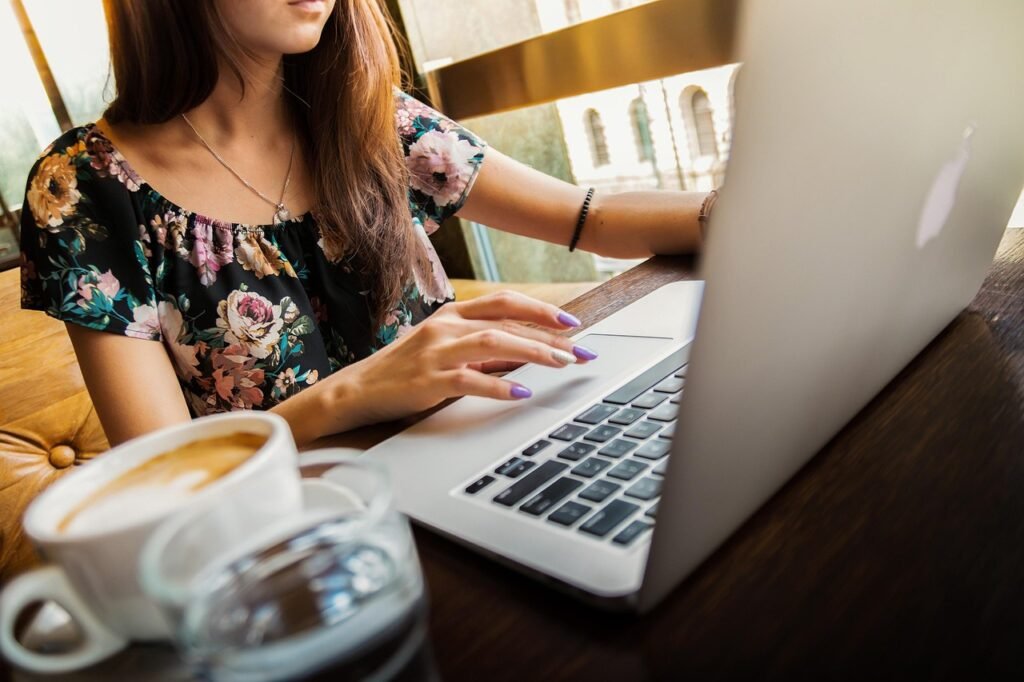
The “Dedicated Workspace” Problem
Let’s start with the listing description, because this is where the disappointment usually begins.
“Dedicated workspace” is one of the most optimistically applied phrases in Airbnb listings. It sounds like a proper desk, a chair with adjustment options, good lighting, and proximity to a reliable connection. In practice, it frequently means a table that’s technically not used for eating, positioned wherever happened to be convenient when the host furnished the apartment, with a chair borrowed from the dining set.
The height is often wrong — too high for comfortable typing over hours, or too low to see the screen without hunching. The chair is often wrong — a kitchen stool, a wooden chair without padding, occasionally something with wheels that sinks slowly toward the floor across the course of a morning. The lighting is frequently wrong — either a window directly behind the screen creating glare, or no natural light near the desk at all.
For a one-night or even a one-week stay, none of this matters very much. For three months of full working days, it matters enormously.
What to do:
Before you book a long stay, message the host directly and ask specific questions about the workspace. Not “do you have a workspace?” — the answer will always be yes. Instead: “How many desks are there?” (critical if two people need to work simultaneously), “Can you describe the chair?”, “Is there natural light near the desk?”, “What is the desk height approximately?”
A host who can answer these questions specifically is a host who knows their space well. A host who responds with “yes there is a nice desk!” without engaging with the specifics probably hasn’t thought much about it.
When you arrive, assess the workspace immediately — on day one, not week three. If the chair is unusable for long days, a cheap replacement from a local second-hand shop or marketplace is often worth the investment for a three-month stay. A seat cushion, a laptop stand, an external keyboard — small additions that travel reasonably well and transform an uncomfortable setup into a functional one.
And if the layout isn’t working — if the desk is in a dark corner while a better surface sits in a different room — move things around. We’ve rearranged workspace setups in almost every long-term rental we’ve stayed in. It’s almost always allowed and almost always an improvement.
The Wi-Fi Problem and How We Solved It
The workspace issue has limited solutions because furniture is heavy and hosts are sometimes resistant to change. The Wi-Fi problem, by contrast, is almost always solvable — and solving it properly is one of the best investments a long-term remote working traveller can make.
We’ve been through a few iterations of this over the years, and the current setup works well.
Stage one: the portable Wi-Fi router
For several years, we travelled with a portable Wi-Fi router — a small device that takes a local SIM card and creates its own wireless network. You insert a local data SIM, connect your devices, and you have a connection that’s entirely independent of whatever the Airbnb provides.
This saved us from difficult situations more times than we can count. An Airbnb connection that’s too slow for video calls becomes a fallback rather than a crisis. A complete internet outage — which, depending on where you’re travelling, happens more than you’d expect — becomes a minor inconvenience rather than a lost work day.
The limitations are real: you need to buy a local SIM on arrival (more on that below), the data costs something, you have to remember to charge it, and in areas with poor mobile coverage it’s not always fast enough for demanding tasks. But as a backup and occasional primary connection, it’s been genuinely invaluable.
Stage two: the travel router
In more recent years, we’ve added a proper travel router — a different kind of device that doesn’t use a SIM card but instead connects to the Airbnb’s existing router and rebroadcasts the signal more effectively throughout the apartment.
The practical benefits of this are significant. It can roughly double the usable speed of the existing connection (by handling the traffic more efficiently than most consumer routers do). It eliminates dead zones — those frustrating patches of an apartment where the Wi-Fi barely reaches and a video call becomes a risk. And it means both of us can work from different parts of the apartment without one person getting a significantly weaker connection than the other.
Setup is straightforward: you connect the travel router to the main router in the Airbnb via an ethernet cable (most routers have spare ports), configure it once using a phone or laptop, and from that point it just works. When you leave, it packs into a bag the size of a paperback book.
The one limitation: if there’s a power outage, the travel router goes down with everything else. This is where the portable mobile router — kept charged and with a local SIM — earns its place as a backup. Between the two, we’ve been caught without a working connection exactly once in years of full-time remote travel.
Placement matters more than people realise
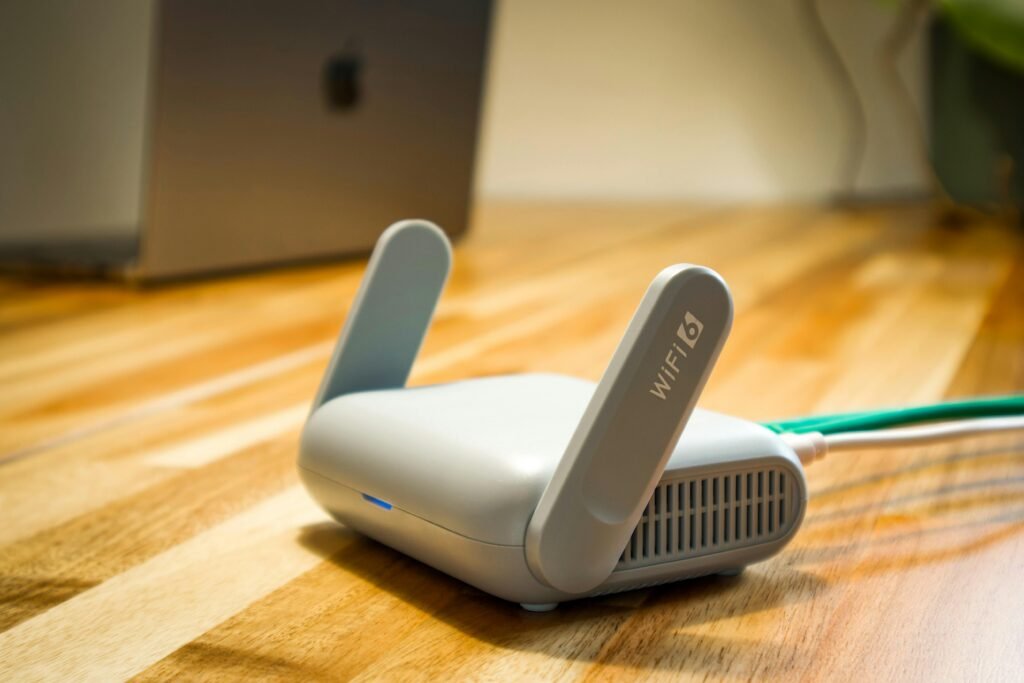
Whether you’re using a travel router, a mobile router, or relying on the Airbnb’s existing setup, physical placement makes a meaningful difference to signal quality. Position a router as close to the centre of the space as possible, elevated off the floor, away from thick walls, microwaves, and other electronics that interfere with the signal. If you’re in a dead zone, try placing the router physically between the main router and where you need to work — even moving it a few metres can noticeably improve the connection.
Bufferbloat: The Hidden Reason Your Connection Feels Slow
If you’ve ever been in a situation where your internet speed test shows a reasonable result but your video calls are still choppy and laggy, the cause is often something called bufferbloat — a network congestion issue that speed tests don’t measure but that has a significant impact on real-world performance.
There’s a free tool called Waveform’s Bufferbloat Test (available at waveform.com) that measures this specifically. If you run it and get a poor grade, the fix — adjusting the router’s QoS (Quality of Service) settings — can dramatically improve call quality and general responsiveness without any change to your actual internet plan.
This is more of a technical fix, but if you’re consistently experiencing video call issues in an Airbnb despite having what looks like adequate speed, it’s worth checking before assuming the connection simply isn’t good enough.
Local SIM Cards: Why We Always Use Them and How to Get Them Easily
A portable router is only as useful as the SIM card inside it. And the SIM card question — which one, how to get it, what it costs — is something a lot of long-term travellers overcomplicate.
Our consistent recommendation is a local SIM card. Not an international roaming plan, not a travel eSIM from your home provider. A local SIM from the country you’re staying in.
The reasons are straightforward. Local SIMs are significantly cheaper for data. They typically offer better coverage because they’re on the main domestic networks rather than roaming agreements. And having a local number — which most local SIMs include — is genuinely useful for the practical aspects of living somewhere for months: ordering online, registering for services, booking appointments, receiving delivery confirmations.
When you work from home and can’t always step out, having local ordering and delivery access is more valuable than it might seem when you’re planning a trip.
How to get one without the airport scramble:
Many local SIM cards can now be ordered online before or on arrival. Trip.com is a reliable option that covers many countries and allows you to order in advance. The local network provider’s own website is often equally straightforward — a quick search for “[country name] SIM card” usually surfaces the main options, many of which offer delivery to your Airbnb address within a day or two of arrival.
Alternatively, convenience stores and phone shops near most city centres stock them and the process is usually fast. The staff are accustomed to travellers and the setup is typically done in-store.
The Setup That Works for Us, and Might Work for You
To summarise what years of iteration has produced: a travel router connected to the Airbnb’s main router for day-to-day use, with a portable mobile router kept charged and loaded with a local SIM as backup. The travel router handles normal working days; the mobile router covers outages, slow connections, and the occasional location where the Airbnb Wi-Fi simply isn’t adequate for two people working simultaneously.
Neither device is expensive relative to the peace of mind it provides. Both pack small. And together, they’ve transformed Wi-Fi from the most stressful variable in long-term Airbnb living into something that mostly just works.
If there’s one thing we’d pass on to anyone embarking on a long-term remote working stay, it’s this: don’t rely on the listing’s description of the internet. Test it on day one, have a backup ready, and invest in the tools that make the connection yours to control rather than the host’s to guarantee.
Also check out:
- How to Feel at Home in an Airbnb (Long-Term Stay Guide)
- Why Airbnb Guests Should Document Everything on Arrival
- What Guests Check First When They Arrive
- Moving to Tbilisi as an EU/Non-EU Couple: Honest Guide
Because when your Airbnb feels more like home, everyone wins.